
Although Macs are designed to be performance beasts, there comes a time in every shiny Apple computer’s life when the stresses of computing life can get to them… I’ve experienced this with my own MacBook; it’s starting to get a little sluggish, even though I now use it for much less power-hungry applications such as writing and email.
Occasionally, I’ll dabble in some image editing or graphics creation with The GIMP or Inkscape, or some music composition in Garageband. But I’ve noticed some serious performance lag as I near my first year with the Mac. So, today I present to you some quick tips on how to enhance the performance of your Mac, be it an Apple portable, an all-in-one iMac, or that beast of a machine, the Mac Pro.
- Clean out the “Downloads” folder:
This is a surprising one; sometimes, you never realize how big the Downloads folder on your Mac can really get. Mine is almost 2GB (!). This is valuable hard-disk space that could be utilized in better ways. I recommend you delete any unnecessary files in this folder (if possible, clean-out the entire folder). Move any files you want to keep for future use (such as installation packages) to an external hard drive.
- Clean out the “Start-up” Processes:
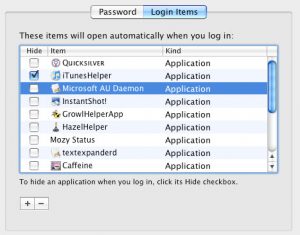
Some applications launch immediately when you start-up your Mac. However, you may not need to use any of them, so why not remove them from the Startup que? Do this by navigating to: Apple Menu -> System Preferences -> Accounts -> Login Items. In there, simply click on the name of a startup item, and click the “minus” sign at the bottom of the list box.
- Get rid of languages you don’t need:
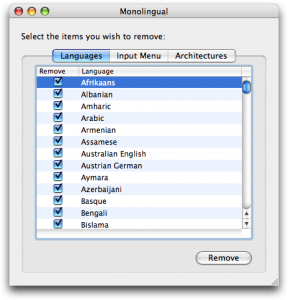
By default, OS X installs a bunch of languages to make the OS more universally accessible. But you may not need most of those files; simply remove them by using a nifty utility called Monolongual.
- Restart your Mac:
If you tend to keep your Mac on for a long time (a good few days at most), it’s time to give the poor thing a rest — they do have feelings too, you know! Restart the machine, and you may experience a jump in performance.
- Repair your system:
Utilities like Onyx (link to application site) can perform “repairs” to the system, fixing little portions of the OS that may have gotten damaged with the day-to-day stresses of digital life.
- Clean the Hard Drive:
Move-off those unnecessary files like movies, music, and photos, to an external hard drive. Personally, I have my DVD collection which is optimized for iPod viewing sitting on my external drive, saving over 20-30GB of space. Saving disk space gives your Mac a “fresh” feel too, and it makes Spotlight searches that much quicker.
Finally, it’s highly recommended that if you own any of the latest Macs (from 2008 onwards, like the uni-body Mac Books), you upgrade to Snow Leopard. While OS X 10.6 doesn’t include many visual features, it’s refinements under-the-hood make your Mac feel brand new. Do you have any tips of your own that you use to speed-up your Mac? Drop a line in the comments below!