By using this site, you agree to the Privacy Policy and Terms of Use.
Accept
BlogoteBlogoteBlogote
  • Software
  • Tech News
  • Business
  • Fashion
  • Finance
  • Health
  • Lifestyle
Search
  • Contact
  • Blog
  • Complaint
  • Advertise
Reading: Add Facebook Messenger to Firefox Browser’s Sidebar
Share
Sign In
Notification Show More
Font ResizerAa
BlogoteBlogote
Font ResizerAa
  • Tech News
  • Gadget
  • Technology
  • Mobile
Search
  • Home
    • Home 1
    • Home 2
    • Home 3
    • Home 4
    • Home 5
  • Categories
    • Tech News
    • Gadget
    • Technology
    • Mobile
  • Bookmarks
  • More Foxiz
    • Sitemap
Have an existing account? Sign In
Follow US
  • Contact
  • Blog
  • Complaint
  • Advertise
Home » Blog » Add Facebook Messenger to Firefox Browser’s Sidebar
How to

Add Facebook Messenger to Firefox Browser’s Sidebar

Sara Taylor
Last updated: June 6, 2022 7:49 am
Sara Taylor
Share
SHARE

A lot of people travel into the world of Facebook everyday, simply because it’s easier to connect and develop deeper connection with your friends. And now, Mozilla Firefox wants to strengthen this connection even further.

Mozilla Firefox browser’s introduced social API which allows people to effortlessly access social sites. Currently, Facebook Messenger is the first and only service that utilizes the power of the social API.

The new “Facebook Messenger” is already integrated on the browser, and it brings some of the crucial Facebook elements on the sidebar of Firefox.

Any avid Facebooker will find this useful for several reasons. Once you have activated Facebook Messenger on your Firefox browser, you can chat with your friends without having to visit the Facebook website. There’s no need to launch a new tab or window to view notifications, as you will get all the updates — friend request, messages, comments, and every other notification — on the sidebar.

Recent updates from your friends will be shown, along with the list of friends who are online and offline. Sending messages is easier, too — simply click a friend’s name to get a new chat window, then add your message and hit the Enter button.
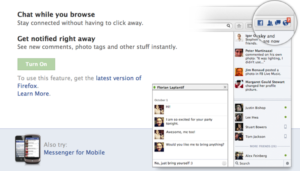
Facebook Messenger is available only on the latest version (v17) of Firefox browser.

Millions of users already use Mozilla Firefox as their default web browser, and adding such a profound social integration certainly puts the browser a step ahead of the curve. There’s also a built-in PDF reader in Firefox for viewing the contents of the PDF file.

In order to connect Facebook Messenger to Firefox, there are only two things you need. First, you must have the latest version of Firefox installed on your computer — Firefox 17.0 is the new version available for download. Second, after you have downloaded and installed the browser, go to this link and click on the “Turn On” button.

As Mozilla evolves, expect new features and seamless integration of other social networking sites.

How to Restore Address Book Backup on Mac OS
How to delete Google analytics account permanently
How to Add Videos in Your Presentation
How to Get Spotify Premium for Free or Cheap
Free Proxy Extension to Access Hulu, NetFlix Outside the US

Sign Up For Daily Newsletter

Be keep up! Get the latest breaking news delivered straight to your inbox.
[mc4wp_form]
By signing up, you agree to our Terms of Use and acknowledge the data practices in our Privacy Policy. You may unsubscribe at any time.
Share This Article
Facebook Copy Link Print
Share
Previous Article Download Philips Songbird
Next Article How to Upload Mp3 Audio Song Files To Youtube

Stay Connected

248.1KLike
69.1KFollow
134KPin
54.3KFollow

							banner							
							banner
Create an Amazing Newspaper
Discover thousands of options, easy to customize layouts, one-click to import demo and much more.
Learn More

Latest News

What Date is 72 Days From Today?
Guides
What is 18 Weeks From Today?
Weeks
Brazil Tech News
Brazil Tech News: Top 10 Startups Changing Latin America
News
The Best AI Video Generator for YouTube: Turning Scripts into Viral Content Fast
Guides

You Might also Like

Opening and Reading XPS Files on Mac

Sara Taylor
Sara Taylor
2 Min Read

Stream Videos From One Computer to Another Using VLC Player

James Betterson
James Betterson
4 Min Read

How To Watch Your Favorite Shows Whenever And Wherever You Are

admin
admin
7 Min Read
//

We influence 20 million users and is the number one business and technology news network on the planet

Sign Up for Our Newsletter

Subscribe to our newsletter to get our newest articles instantly!

[mc4wp_form id=”1616″]

BlogoteBlogote
Follow US
Join Us!
Subscribe to our newsletter and never miss our latest news, podcasts etc..
[mc4wp_form]
Zero spam, Unsubscribe at any time.
Welcome Back!

Sign in to your account

Username or Email Address
Password

Lost your password?