
By using this site, you agree to the Privacy Policy and Terms of Use.
Accept
BlogoteBlogoteBlogote
  • Software
  • Tech News
  • Business
  • Fashion
  • Finance
  • Health
  • Lifestyle
Search
  • Contact
  • Blog
  • Complaint
  • Advertise
Reading: Google chrome Trick – Changing the default search engine
Share
Sign In
Notification Show More
Font ResizerAa
BlogoteBlogote
Font ResizerAa
  • Tech News
  • Gadget
  • Technology
  • Mobile
Search
  • Home
    • Home 1
    • Home 2
    • Home 3
    • Home 4
    • Home 5
  • Categories
    • Tech News
    • Gadget
    • Technology
    • Mobile
  • Bookmarks
  • More Foxiz
    • Sitemap
Have an existing account? Sign In
Follow US
  • Contact
  • Blog
  • Complaint
  • Advertise
Home » Blog » Google chrome Trick – Changing the default search engine
How toTech

Google chrome Trick – Changing the default search engine

Sara Taylor
Last updated: June 6, 2022 7:49 am
Sara Taylor
Share
SHARE

Google web browser has very minimum option for customization as it is already built to suit the Internet users,if you have Google chrome browser downloaded on your PC then you will know that the browser has a smart address bar which also acts as search engine,this means you can type the website address with automatic url suggestion as well as search in search engine using the same bar.


When you are done with installation of Chrome,you will have a option to change the search engine and also to import the password,history and bookmarks from other browser (backup and restore the chrome profile).If you have skipped changing the search engine then Google chrome will have a default search engine set which is “Google.com”.Also chrome can be empowered with firefox chrome addon/extension. If you are a user who uses other search engine like yahoo,MSN live search then here is a simple trick to change the default search engine.

Open your Chrome browser and using your mouse,right click on the address bar,this shows up various things like paste,paste and go and Edit search engine.

Click on Edit search engine and a dialog box will appear with information about the various default and other search engine available.
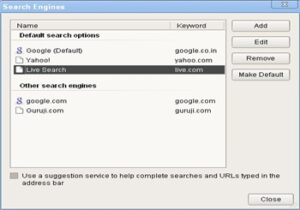
Click on Add or choose from the existing search engine and click on Make default.Alternately you can choose Yahoo,MSN live search engine and make is as default, also you can remove any search engine or add local search engine easily!

Uninstall Little Snitch Completely From Mac
Windows 10 Won’t Start: How To Fix It
Huawei prepares a 135W fast charging system
How to See Other Phone Screens on Your Phone Remotely
How to Change the Background Color in iPhoto Application

Sign Up For Daily Newsletter

Be keep up! Get the latest breaking news delivered straight to your inbox.
[mc4wp_form]
By signing up, you agree to our Terms of Use and acknowledge the data practices in our Privacy Policy. You may unsubscribe at any time.
Share This Article
Facebook Copy Link Print
Share
Previous Article How to reactivate deleted Orkut account
Next Article How to Disable or Uninstall Google Chrome Extensions/Addons

Stay Connected

248.1KLike
69.1KFollow
134KPin
54.3KFollow

							banner							
							banner
Create an Amazing Newspaper
Discover thousands of options, easy to customize layouts, one-click to import demo and much more.
Learn More

Latest News

Juanita Katt
Juanita Katt: The Private Daughter of a Hollywood Family
Biography
What Date is 72 Days From Today?
Guides
What is 18 Weeks From Today?
Weeks
Brazil Tech News
Brazil Tech News: Top 10 Startups Changing Latin America
News

You Might also Like

How to Grow Your Brand and Stand Out in Your Niche?

admin
admin
8 Min Read

How to Calculate How Many Days of Your Paid Leave You Have Left?

admin
admin
6 Min Read

Business Tech Support: What Options Does a Small Business Have?

admin
admin
8 Min Read
//

We influence 20 million users and is the number one business and technology news network on the planet

Sign Up for Our Newsletter

Subscribe to our newsletter to get our newest articles instantly!

[mc4wp_form id=”1616″]

BlogoteBlogote
Follow US
Join Us!
Subscribe to our newsletter and never miss our latest news, podcasts etc..
[mc4wp_form]
Zero spam, Unsubscribe at any time.
Welcome Back!

Sign in to your account

Username or Email Address
Password

Lost your password?