
By using this site, you agree to the Privacy Policy and Terms of Use.
Accept
BlogoteBlogoteBlogote
  • Software
  • Tech News
  • Business
  • Fashion
  • Finance
  • Health
  • Lifestyle
Search
  • Contact
  • Blog
  • Complaint
  • Advertise
Reading: Enable Windows Media Player Mini player Mode
Share
Sign In
Notification Show More
Font ResizerAa
BlogoteBlogote
Font ResizerAa
  • Tech News
  • Gadget
  • Technology
  • Mobile
Search
  • Home
    • Home 1
    • Home 2
    • Home 3
    • Home 4
    • Home 5
  • Categories
    • Tech News
    • Gadget
    • Technology
    • Mobile
  • Bookmarks
  • More Foxiz
    • Sitemap
Have an existing account? Sign In
Follow US
  • Contact
  • Blog
  • Complaint
  • Advertise
Home » Blog » Enable Windows Media Player Mini player Mode
How to

Enable Windows Media Player Mini player Mode

James Betterson
Last updated: June 6, 2022 7:49 am
James Betterson
Share
SHARE

If you are playing mp3 songs on your windows media player then you don’t really need a huge screen feature, often you can minimize the media player but there is a inbuilt option to reduce unwanted screen layouts from the windows media player while you are playing only audio songs, we are talking about “Mini player mode” in windows media player.If you are not sure how to enable it then here are the steps to follow
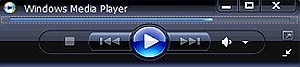
Mini mode in Windows media player

1. Open windows media player

2. Go to Tools and then to the options menu

3. A Player dialog box opens where you will find “Start the mini Player for file names that contain this text” box, check it and add “.mp3” in the text box.You can also add real player format, divx, mp4 format or specific drive.

4. Click apply and open any mp3 file, there you have your mini media player playing audio files in mini-mode!

Mini player mode doesn’t work with all the version of windows player (works with windows media player 11).For other version you can right click on your taskbar, go to the Toolbar option and check the windows media player which displays a small media bar in your taskbar!

Access and Unblock Orkut, Myspace websites using Powerscrap
How to Check If Windows 10 Is Genuine or Not
Free Private Registration For Domain name [Godaddy trick]
Convert, Create PSP Mp4 Movie Videos With Vuze
Opening and Reading XPS Files on Mac

Sign Up For Daily Newsletter

Be keep up! Get the latest breaking news delivered straight to your inbox.
[mc4wp_form]
By signing up, you agree to our Terms of Use and acknowledge the data practices in our Privacy Policy. You may unsubscribe at any time.
Share This Article
Facebook Copy Link Print
Share
Previous Article How to Open PDF Files on Mac For Free
Next Article Fake Jailbreak Website Offers iOS 6 Jailbreak for iPhone 5/4S, iPad

Stay Connected

248.1KLike
69.1KFollow
134KPin
54.3KFollow

							banner							
							banner
Create an Amazing Newspaper
Discover thousands of options, easy to customize layouts, one-click to import demo and much more.
Learn More

Latest News

Juanita Katt
Juanita Katt: The Private Daughter of a Hollywood Family
Biography
What Date is 72 Days From Today?
Guides
What is 18 Weeks From Today?
Weeks
Brazil Tech News
Brazil Tech News: Top 10 Startups Changing Latin America
News

You Might also Like

How to Play YouTube Songs In The Background on iPhone

Sara Taylor
Sara Taylor
2 Min Read

How to Choose the Right SSL Certificate for Your Business: A Pricing Comparison

admin
admin
4 Min Read

Getting A Specific Phone Number For Your Business: A How-To Guide

admin
admin
8 Min Read
//

We influence 20 million users and is the number one business and technology news network on the planet

Sign Up for Our Newsletter

Subscribe to our newsletter to get our newest articles instantly!

[mc4wp_form id=”1616″]

BlogoteBlogote
Follow US
Join Us!
Subscribe to our newsletter and never miss our latest news, podcasts etc..
[mc4wp_form]
Zero spam, Unsubscribe at any time.
Welcome Back!

Sign in to your account

Username or Email Address
Password

Lost your password?