
By using this site, you agree to the Privacy Policy and Terms of Use.
Accept
BlogoteBlogoteBlogote
  • Software
  • Tech News
  • Business
  • Fashion
  • Finance
  • Health
  • Lifestyle
Search
  • Contact
  • Blog
  • Complaint
  • Advertise
Reading: Fix AutoSpell Check on Mac OS X
Share
Sign In
Notification Show More
Font ResizerAa
BlogoteBlogote
Font ResizerAa
  • Tech News
  • Gadget
  • Technology
  • Mobile
Search
  • Home
    • Home 1
    • Home 2
    • Home 3
    • Home 4
    • Home 5
  • Categories
    • Tech News
    • Gadget
    • Technology
    • Mobile
  • Bookmarks
  • More Foxiz
    • Sitemap
Have an existing account? Sign In
Follow US
  • Contact
  • Blog
  • Complaint
  • Advertise
Home » Blog » Fix AutoSpell Check on Mac OS X
How to

Fix AutoSpell Check on Mac OS X

Sara Taylor
Last updated: June 6, 2022 7:49 am
Sara Taylor
Share
SHARE

If you are in the habit of typing The as Teh, then auto spell check on Mac OS X usually picks them up and fixes these minor typos instantly. However, sometimes the spell checker struggles to pick up these errors leaving you to correct these words manually.

Sometimes the spell checker goes bonkers.

Especially on Mac OS X Lion, the issue with auto spell check placing the wrong words unnecessarily can lead to frustration in you. So how do we fix this?

One of the easiest solution is to reset the Language and Text on your Mac machine.

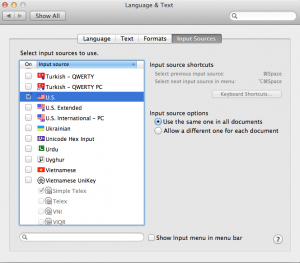
Go to System Preferences and navigate to Languages and Text. Click on Text, Input Sources to check for the right settings. You can un-check and recheck the boxes and restart your Mac — this has proven to work in many instances.
 

Activate Spell Check in Safari Browser

To turn on the AutoSpell function in Safari, follow this simple procedure:

Launch the Safari browser, place the cursor in the address field, and right-click to initiate a menu.
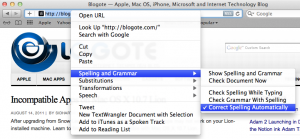
 

Select Spelling and Grammar, and tick the preferred choice from the list — Check Spelling Automatically, in my case.

Adding Custom List of Words.

If nothing works then not to worry. Here’s a good-enough fix to put you out of misery. Every Mac machine has a local dictionary which can be accessed at this locations:

~/Library/Spelling/LocalDictionary

You can open the file using TextEdit, and search for the word which is not picked up by the auto spell. If there’s any error in your local dictionary, fix the particular word manually and save the file.

You can also add custom words if there’s a need to do so.

Adblock+ For Opera 10 | Block Ads from Webpages
How Paid Marketing of Ads on Social Media Helps?
Uploading Multiple Photos on Facebook
Convert Image Format to PSD, Jpeg Format
Google Maps Printing: Here’s How It’s Done!

Sign Up For Daily Newsletter

Be keep up! Get the latest breaking news delivered straight to your inbox.
[mc4wp_form]
By signing up, you agree to our Terms of Use and acknowledge the data practices in our Privacy Policy. You may unsubscribe at any time.
Share This Article
Facebook Copy Link Print
Share
Previous Article Apple iTunes 11: Here’s How to Bring Back Album Artwork (Cover Photo) for Songs
Next Article Apple Will Not Only Sell But Also Manufacture Mac Minis in the USA

Stay Connected

248.1KLike
69.1KFollow
134KPin
54.3KFollow

							banner							
							banner
Create an Amazing Newspaper
Discover thousands of options, easy to customize layouts, one-click to import demo and much more.
Learn More

Latest News

Juanita Katt
Juanita Katt: The Private Daughter of a Hollywood Family
Biography
What Date is 72 Days From Today?
Guides
What is 18 Weeks From Today?
Weeks
Brazil Tech News
Brazil Tech News: Top 10 Startups Changing Latin America
News

You Might also Like

Fix Missing Comdlg32.ocx Run time Error in Portable apps

Sara Taylor
Sara Taylor
1 Min Read

Stumbleupon without firefox addons on Google chrome,Safari,Opera browser

Sara Taylor
Sara Taylor
2 Min Read

Block Ads on all Mac OS X Browsers With Glimmer Blocker

James Betterson
James Betterson
2 Min Read
//

We influence 20 million users and is the number one business and technology news network on the planet

Sign Up for Our Newsletter

Subscribe to our newsletter to get our newest articles instantly!

[mc4wp_form id=”1616″]

BlogoteBlogote
Follow US
Join Us!
Subscribe to our newsletter and never miss our latest news, podcasts etc..
[mc4wp_form]
Zero spam, Unsubscribe at any time.
Welcome Back!

Sign in to your account

Username or Email Address
Password

Lost your password?