By using this site, you agree to the Privacy Policy and Terms of Use.
Accept
BlogoteBlogoteBlogote
  • Software
  • Tech News
  • Business
  • Fashion
  • Finance
  • Health
  • Lifestyle
Search
  • Contact
  • Blog
  • Complaint
  • Advertise
Reading: How to Install Windows 8 on Mac OS X Using VMware Fusion
Share
Sign In
Notification Show More
Font ResizerAa
BlogoteBlogote
Font ResizerAa
  • Tech News
  • Gadget
  • Technology
  • Mobile
Search
  • Home
    • Home 1
    • Home 2
    • Home 3
    • Home 4
    • Home 5
  • Categories
    • Tech News
    • Gadget
    • Technology
    • Mobile
  • Bookmarks
  • More Foxiz
    • Sitemap
Have an existing account? Sign In
Follow US
  • Contact
  • Blog
  • Complaint
  • Advertise
Home » Blog » How to Install Windows 8 on Mac OS X Using VMware Fusion
How to

How to Install Windows 8 on Mac OS X Using VMware Fusion

Sara Taylor
Last updated: June 6, 2022 7:49 am
Sara Taylor
Share
SHARE

Microsoft officially took the wraps off of Windows 8, unveiling its newest OS to the world few days ago. Now, installing Windows 8 Developer Preview on Mac was a piece of cake, thanks to VMware Fusion.

Follow the procedure below to run Windows 8 on Mac OS X Lion using VMware Fusion.

However, before you dig into this step-by-step tutorial, this is what you need to get started:

  • You have the Windows 8 .ISO file — download from here, if you haven’t already.
  • You have VMware Fusion 4 installed — you can also download the free 30 day trial.
  • You have a Windows Live account — you can get a Live ID from here.
  • Your Mac is connected to the Internet.
  • Your Mac machine is in line with Windows 8 requirements.

Step by Step Tutorial to Install Windows 8 Using VMware Fusion

Step 1: Launch VMware Fusion 4. Click on New. Select Continue without disc.

Step 2: In the Choose a disc or disc image option, select the Windows 8 .ISO file that you have already downloaded. Click on Continue.

Step 3: Now, by default, VMware tries to recognize the .ISO file. You can, however, select OS as Microsoft Windows and Version as Windows 7. This is because Windows 8 requirements stand similar to that of Windows 7.

Step 4: In the next window, you can customize the settings for your Operating System. Click Finish and the installation process should begin instantly.
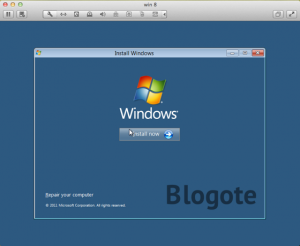
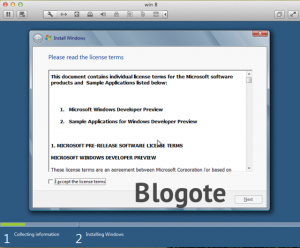
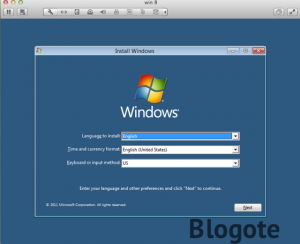
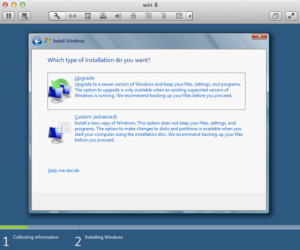
Step 5: Select the language to install, set time and choose the input keyboard. In the next window choose the type of installation you’d like to go with.
Step 6: Wait for Windows to check the installation. It should take around 10 minutes to check the files, install features and install updates, if any.
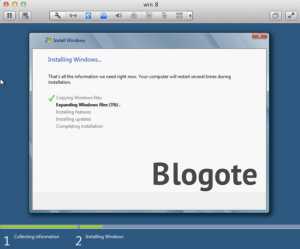
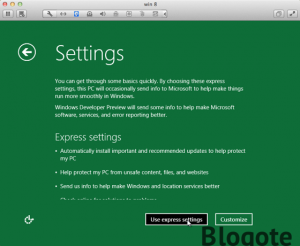
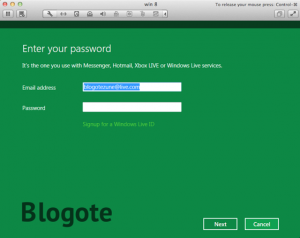
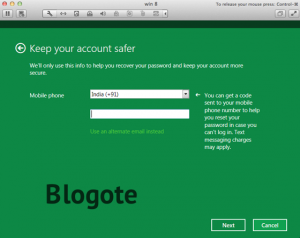
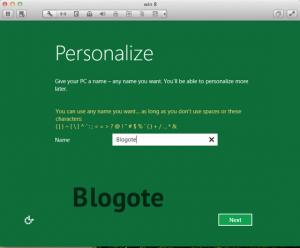
Step 7: Personalize your settings. You can give a name to your PC, choose and customize settings and log in using your Windows Live ID.
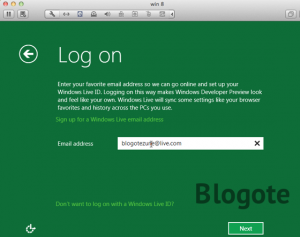
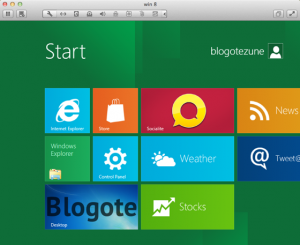
Step 8: Once you have gone through the process, settings will be finalized and in a minute or two you’ll have Windows 8 running on Your Mac.
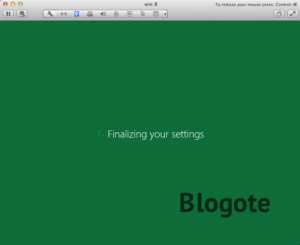
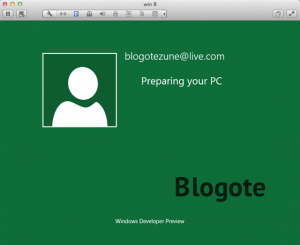
That is it! Now you can fiddle with Microsoft’s new toy, and enjoy discovering the host of new features it offers. If you find any difficulty in installation, let me know.


No HTC Sync For Mac? You can Still Sync Data Between Mac and HTC Android Phone
How to Find Pending Facebook Friend Requests
How to Improve Your Customer Verification Process
Rollback restore method from Windows 11 to Windows 10
What is 400 Bad Request Error and How to Fix It

Sign Up For Daily Newsletter

Be keep up! Get the latest breaking news delivered straight to your inbox.
[mc4wp_form]
By signing up, you agree to our Terms of Use and acknowledge the data practices in our Privacy Policy. You may unsubscribe at any time.
Share This Article
Facebook Copy Link Print
Share
Previous Article JailbreakMe.com is here. Jailbreak iPhone 4, 3GS, 3G on iOS 4 / iOS 4.0.1 and iPad on iOS 3.2.1
Next Article Dreams Shattered: Cydia Jailbreak for iPhone 5, iOS 6 Device is Not Real?

Stay Connected

248.1KLike
69.1KFollow
134KPin
54.3KFollow

							banner							
							banner
Create an Amazing Newspaper
Discover thousands of options, easy to customize layouts, one-click to import demo and much more.
Learn More

Latest News

Juanita Katt
Juanita Katt: The Private Daughter of a Hollywood Family
Biography
What Date is 72 Days From Today?
Guides
What is 18 Weeks From Today?
Weeks
Brazil Tech News
Brazil Tech News: Top 10 Startups Changing Latin America
News

You Might also Like

Watch Live IPL 2011 Cricket Matches Online on YouTube

Sara Taylor
Sara Taylor
1 Min Read

Crypto Trading Tips: How To Get Into The NFT World

admin
admin
9 Min Read

OpenSubtitles – Download Free DivX Movie Subtitles

James Betterson
James Betterson
2 Min Read
//

We influence 20 million users and is the number one business and technology news network on the planet

Sign Up for Our Newsletter

Subscribe to our newsletter to get our newest articles instantly!

[mc4wp_form id=”1616″]

BlogoteBlogote
Follow US
Join Us!
Subscribe to our newsletter and never miss our latest news, podcasts etc..
[mc4wp_form]
Zero spam, Unsubscribe at any time.
Welcome Back!

Sign in to your account

Username or Email Address
Password

Lost your password?