
WIFI disconnects itself in Windows 10 this often happens. And sometimes it happens randomly.
For example, a laptop can connect to WIFI A, but can’t connect to WIFI B even though
both WIFI networks are good. Well, for those of you who often experience these problems, here’s how to solve Windows 10
frequent disconnections.
Causes of Frequently Disconnected Wifi in Windows 10

There are several reasons why WIFI suddenly disconnects that are often found by
most users,
including the following.
#1. WIFI Signal Too Weak
One of the problems that most often causes WIFI to suddenly not connect is a WIFI
signal that is
too weak.
To overcome this, you only need to close the distance between the device and the
router or WIFI
the modem you are using.
#2. Too Many Connected Devices
Every router or modem that can transmit WIFI signals certainly has a limit on the
devices that
can connect to the network.
Even though the signal from the router is full, if the device using it exceeds the specified
quota limit,
it is possible that the WIFI network will suddenly be disconnected.
#3. Old Router or Modem
The router has been used for too long, usually, certain problems will appear.One
of them is
WIFI with a red cross or the connection is often disconnected.
To solve this problem, the only way is to replace the router or modem with a newer
version so that
the WIFI signal can be used smoothly.
How to Overcome Wi-Fi Connections Often Drops Windows 10
1. Restart Windows
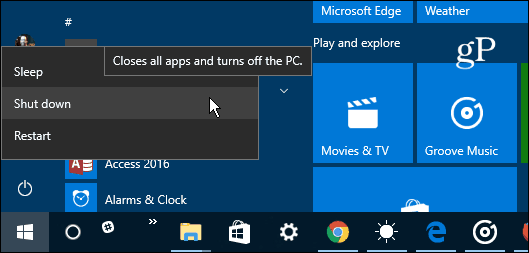
The first way you can do to overcome the WIFI connection that often drops is to
restart
Windows.
Sometimes the Windows system does experience errors or bugs due to prolonged
use or
corrupted system files.
Therefore, the system must be restarted to make the system files in it fresh again.
2. Use the “Forgot Password” Feature
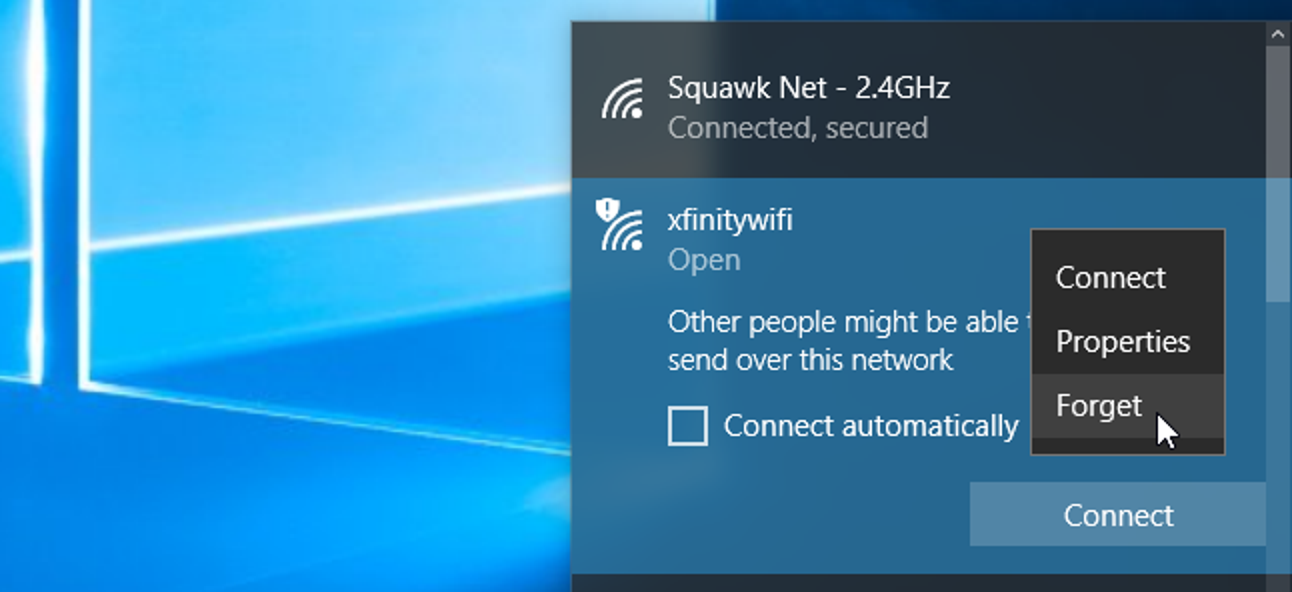
The next way is to use the ” Forgot Password ” feature. its function is to make the connected WIFI network disabled first to be reconnected later.
Here are the steps:
1. The first step is to open the Settings menu on the laptop / PC device by clicking
Start
2. Or you can also directly search for it in the search column that is available on the
Taskbar
section.
3. If the settings page has opened, select the “Network & Internet” option then select
“Wi-Fi”. Then you can select the “Manage Known Network” option to display a list of
WIFI that has been connected to the device.
4. Choose one WIFI network to do ” Forgot Password ” with the click of a button
” Forget “.
5. After that, you can try the WIFI network again to check whether the connection
is
running normally or not.
3. Change WiFi Settings to Private
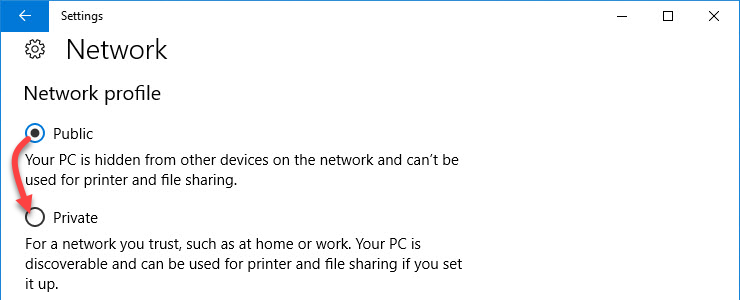
Changing the WIFI status from public to private can be one way to overcome Windows 10
frequent disconnections.
Here are ways you can do it.
1. The first step is to open the settings menu and select the ” Network & Internet ” option.
2. If the “Network & Internet” page opens, select the “Wi-Fi” option and right-click on the current WIFI network and select “Properties ”.
3. After the ” Properties ” window opens, you can change the status of the Wi-Fi that is currently connected to the laptop device from public to private.
4. After successfully changing to private, close the settings page then restart the device
and check again whether the Wi-Fi connection can be used normally or not.
4. Update Drivers
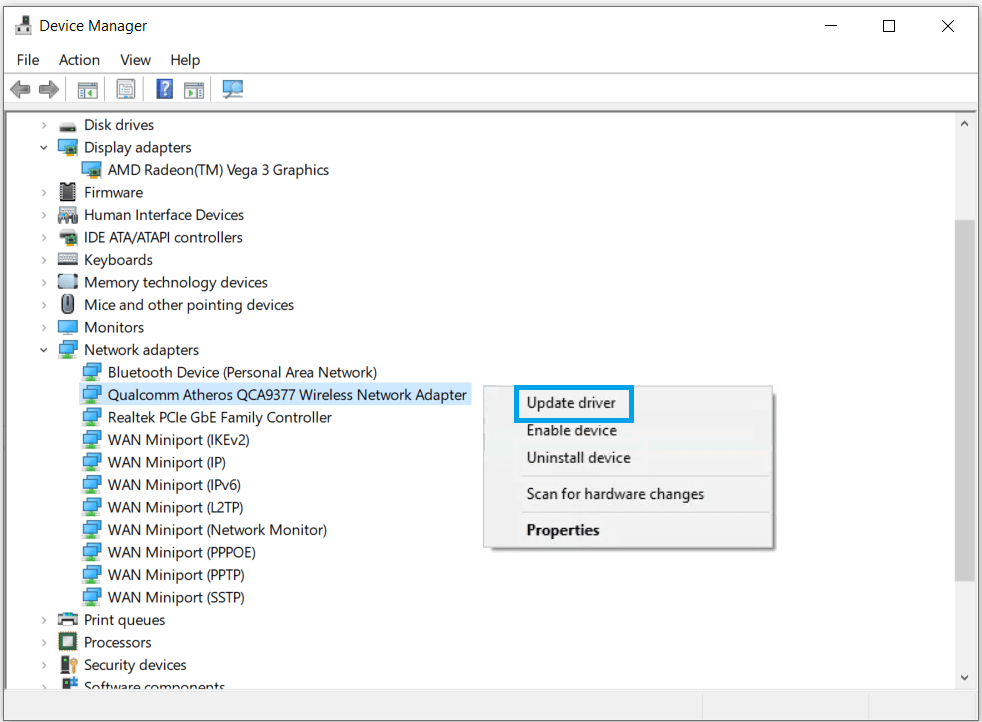
The older version of the WIFI driver will certainly affect the connection and will likely
experience repeated on and off connections.
To overcome this, you need to remove the old version of the WIFI driver and replace
it with the latest version.
You can download the latest WIFI drivers on the official website of the
laptop / PC brand you are using.
5. Restart Modem

Restarting the modem can also be a way to deal with frequently dropping WiFi
connections
for Windows 10 devices.
This method is quite easy to do because you only need to disable the modem/router then
wait about 10 seconds and turn it back on.
If there are no serious problems with the device, this method is quite effective to do.
6. Use the “Troubleshoot” feature on Wifi
The last way you can do to overcome a WIFI connection that is often problematic is to
use the ” Troubleshoot ” feature available on WIFI.
The method is quite easy, you just need to right-click on the WIFI icon (on the Taskbar) and select the “Troubleshoot problems” option.
After that, allow the process of reconnecting the WIFI network until it is successful and
the WIFI connection will automatically return to normal.
Conclusion
By knowing how to fix Windows 10 frequently dropping WIFI connections, you can fix it
quickly if the problem comes up again.I hope this helps.