
Want to experience fast, fast and anti-slow internet? Here’s how to set CloudFlare’s DNS so that the internet is speeding, check it out.
The connection you are using feels slow? Want to feel what it’s like to enjoy the internet without being slow? Maybe, you should use the fastest DNS service from CloudFlare.
DNS is very influential on website speed. So when you are accessing a website, every incoming visitor is generated through the DNS server.
Even though this DNS server is held by the ISP provider, you can still specify the DNS server you want to use.
There are several companies that provide alternative DNS or another term is DNS resolver. Therefore, you can rearrange the traffic path and the result can speed up the data exchange process, and increase the level of security.
One company that provides this DNS resolver service is CloudFlare. Now, CloudFlare provides a DNS resolver service (1.1.1.1) which is declared the fastest DNS.
Not only that, CloudFlare also dares to guarantee that the DNS services they offer are much more secure.
Before discussing more about how to set up DNS cloudflare, it would be nice to know what DNS means first? .
What is DNS?

DNS or other terms better known as domain name servers is a system that records data on various domains on the internet.
It’s like a book, where the book is used to record phone numbers, while DNS is used to record all domains registered on the Internet.
Every website must have an IP address, where the IP is used as an identifier for the web server address in the form of a collection of numbers.
If we want to access a website, but have to write down the IP address first, of course this is not easy. Why? Because we have to memorize all the IP websites that we want to visit.
With this DNS, it is easier for the system to find IP addresses on every website on the internet.
Please note, this DNS server has several names, namely the domain name and IP address used. For example, “otonesia.net”
After knowing the meaning of DNS, it would be nice if you also got acquainted with CloudFlare.
CloudFlare Is
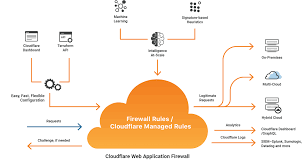
What is CloudFlare? Development company that provides CDN ” Content Delivery Network “, DDOS ” Distributed Denial of Service ” and DNS resolver services.
Now, CloudFlare is the most popular service worldwide, with more than 6 million website users.
This is supported by developments spread all over the world. This support allows CloudFlare to provide fast DNS server services.
After knowing what CloudFlare is, let’s move on to the core discussion, which is how to set up CloudFlare’s DNS below.
Cara Setting DNS CloudFlare Windows
It’s very easy to add CloudFlare’s fastest DNS to windows devices, even beginners can do it. So, how do you set up CloudFlare’s DNS? Here are some steps that you can follow.
The arrangement of the settings will be easier if you use a Windows-based operating system. Why is that? Because it doesn’t require CMD to add the fastest DNS from CloudFlare.
To do this, you just need to go into the network settings, then add the CloudFlare DNS IP to it.
Here’s a guide you can follow.
- Please go to Access Control Panel → Network & Sharing Center → Change Adapter Settings .
- Select the Ethernet/Wifi menu you are using, then right-click and select Properties .
- After that, please select the protocol version you are using, then click Properties again.
- Klik Use The Following DNS Server Adresses.
- If you are using IPv4, please add IP 1.1.1.1 and 1.0.0.1 in the DNS column.
- For IPv6 users, you can use the IP 2606:4700:4700::1111 and 2606:4700:4700::1001.
- The last step, please save the arrangement and click ok. Then, restart the internet connection network.
Closing Sentences : This is an explanation of how to set CloudFlare DNS on the windows operating system. Hopefully this article is easy to understand and helps friends to speed up internet connections.