By using this site, you agree to the Privacy Policy and Terms of Use.
Accept
BlogoteBlogoteBlogote
  • Software
  • Tech News
  • Business
  • Fashion
  • Finance
  • Health
  • Lifestyle
Search
  • Contact
  • Blog
  • Complaint
  • Advertise
Reading: How to Connect to FTP or SFTP Server in Ubuntu
Share
Sign In
Notification Show More
Font ResizerAa
BlogoteBlogote
Font ResizerAa
  • Tech News
  • Gadget
  • Technology
  • Mobile
Search
  • Home
    • Home 1
    • Home 2
    • Home 3
    • Home 4
    • Home 5
  • Categories
    • Tech News
    • Gadget
    • Technology
    • Mobile
  • Bookmarks
  • More Foxiz
    • Sitemap
Have an existing account? Sign In
Follow US
  • Contact
  • Blog
  • Complaint
  • Advertise
Home » Blog » How to Connect to FTP or SFTP Server in Ubuntu
How to

How to Connect to FTP or SFTP Server in Ubuntu

James Betterson
Last updated: June 6, 2022 7:49 am
James Betterson
Share
SHARE

Often used by web designers and web developers to transfer files — FTP architecture is among the best methods to transfer files to a web server and vice-versa. However, due to FTP insecurity issues, some prefer to go with SFTP (SSH File Transfer Protocol). Say SFTP is a more secure and reliable file transfer method.

Ubuntu, being a user-friendly operating system, makes it very easy for you to connect to a server using FTP. If you are finding it difficult to do so, then follow the steps given below to establish a FTP connection to your server.

Connecting to FTP or SFTP in Ubuntu

1. Go to the “Places” menu and select “Connect to Server“. The Connect to Server window opens up. Here you need to enter details regarding your FTP server.
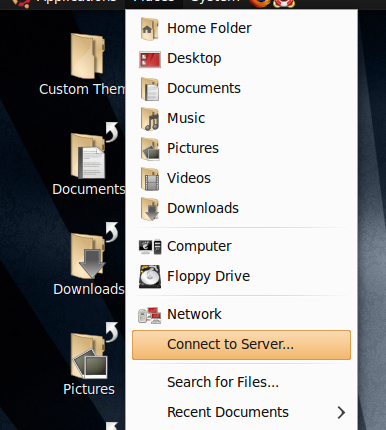
2. In the “Service Type” drop-down menu, select your FTP server type. If your FTP server requires username and password, then select “FTP (with login)” from the drop-down menu. Otherwise, select “Public FTP“.
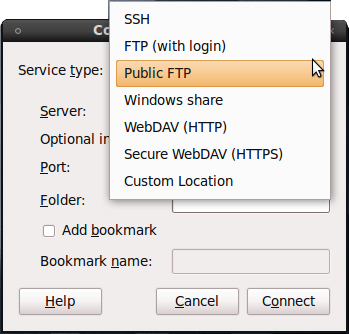
3. In the “Server” text box, enter the FTP address of your server. For ex, ftp.mywebserver.com.
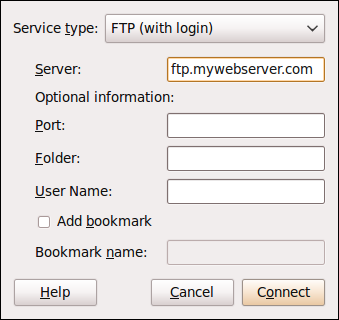
4. Enter the port number used to connect to the server in the “Port” text-box. Generally the following port numbers are used.

FTP - 20 or 21

SFTP - 22

5. The “Folder” text box can be left blank if you want to get into the root folder. If you want to get into a particular folder, enter exact path of the folder.
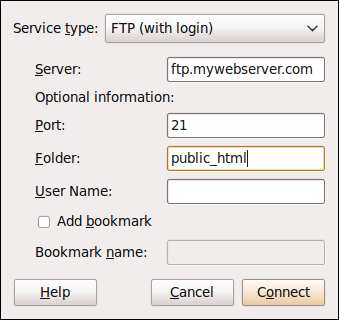
6. Enter your FTP username used to log into the server in the “User Name” text box. For ex, username@ftp.mywebserver.com.

FTP User Name

7. If you want to bookmark your FTP server in order to access it easily in future, click on “Add bookmark” and enter the name of the bookmark you want in the “Bookmark name” text box.

8. After entering all the details, click on “Connect“.

Within a few seconds a box will appear asking you to enter the password. Enter the necessary password and hit the “Connect” button.
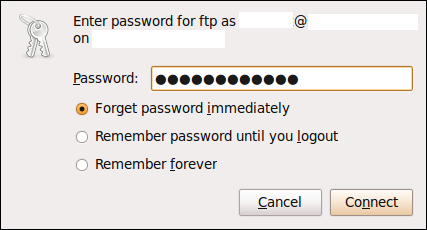
That’s it! Now you can easily transfer your files to and from the web server. It is as easy as copy & paste.

If you are experiencing any connection problems, do let us know. We will be more than happy to help you.

Increase Cyber ​​Attack Protection, Dewaweb Takes Advantage of Cloudflare Magic Transit
HTC Touch Modding and HTC Touch Personalization [How to Tutorial]
Stumble webpages without downloading Stumbleupon toolbar
How to Make a Tutorial Video
How to permanently delete your orkut profile and account

Sign Up For Daily Newsletter

Be keep up! Get the latest breaking news delivered straight to your inbox.
[mc4wp_form]
By signing up, you agree to our Terms of Use and acknowledge the data practices in our Privacy Policy. You may unsubscribe at any time.
Share This Article
Facebook Copy Link Print
Share
Previous Article How to Select Vmware Server Local Host and Add Virtual Machine
Next Article Resize, Maximize Window to Full-screen on Mac Using Shortcut Keys

Stay Connected

248.1KLike
69.1KFollow
134KPin
54.3KFollow

							banner							
							banner
Create an Amazing Newspaper
Discover thousands of options, easy to customize layouts, one-click to import demo and much more.
Learn More

Latest News

What Date is 72 Days From Today?
Guides
What is 18 Weeks From Today?
Weeks
Brazil Tech News
Brazil Tech News: Top 10 Startups Changing Latin America
News
The Best AI Video Generator for YouTube: Turning Scripts into Viral Content Fast
Guides

You Might also Like

YellowPages Reverse Lookup of Phone Numbers

Sara Taylor
Sara Taylor
1 Min Read

How To Add Links To Your TikTok Bio

admin
admin
4 Min Read

Block Ads on all Mac OS X Browsers With Glimmer Blocker

James Betterson
James Betterson
2 Min Read
//

We influence 20 million users and is the number one business and technology news network on the planet

Sign Up for Our Newsletter

Subscribe to our newsletter to get our newest articles instantly!

[mc4wp_form id=”1616″]

BlogoteBlogote
Follow US
Join Us!
Subscribe to our newsletter and never miss our latest news, podcasts etc..
[mc4wp_form]
Zero spam, Unsubscribe at any time.
Welcome Back!

Sign in to your account

Username or Email Address
Password

Lost your password?