
By using this site, you agree to the Privacy Policy and Terms of Use.
Accept
BlogoteBlogoteBlogote
  • Software
  • Tech News
  • Business
  • Fashion
  • Finance
  • Health
  • Lifestyle
Search
  • Contact
  • Blog
  • Complaint
  • Advertise
Reading: Resize, Maximize Window to Full-screen on Mac Using Shortcut Keys
Share
Sign In
Notification Show More
Font ResizerAa
BlogoteBlogote
Font ResizerAa
  • Tech News
  • Gadget
  • Technology
  • Mobile
Search
  • Home
    • Home 1
    • Home 2
    • Home 3
    • Home 4
    • Home 5
  • Categories
    • Tech News
    • Gadget
    • Technology
    • Mobile
  • Bookmarks
  • More Foxiz
    • Sitemap
Have an existing account? Sign In
Follow US
  • Contact
  • Blog
  • Complaint
  • Advertise
Home » Blog » Resize, Maximize Window to Full-screen on Mac Using Shortcut Keys
How to

Resize, Maximize Window to Full-screen on Mac Using Shortcut Keys

James Betterson
Last updated: June 6, 2022 7:49 am
James Betterson
Share
SHARE

Longtime Windows users who have migrated to Mac OS X may require a little time to get used to Apple’s operating system. Let’s talk about the green button — known as the Zoom button — that is visible on almost every Mac application. This button doesn’t do what you think it does.

The Zoom button, when clicked, doesn’t resize windows automatically. Give it a try: launch Safari, hit the green button, and you will know the browser doesn’t resize itself, and it will not expand to full-screen. Sure, there’s a button to maximize Safari to full-screen, but there are many others apps — Finder, for instance — that cannot be resized using the zoom button.

Zoom button simply positions the window to its previous state. As posted in Apple’s developer library: “Zoom button toggles a window between its standard state and its user state.”

To conveniently resize current windows to the available screen space on your Mac, you may want to download Right Zoom. This free application changes the behavior of the green button, allowing you to maximize and resize windows at your convenience.

After you have downloaded and installed Right Zoom on your Mac, you will notice there are two tabs in the application — General and Application tab.
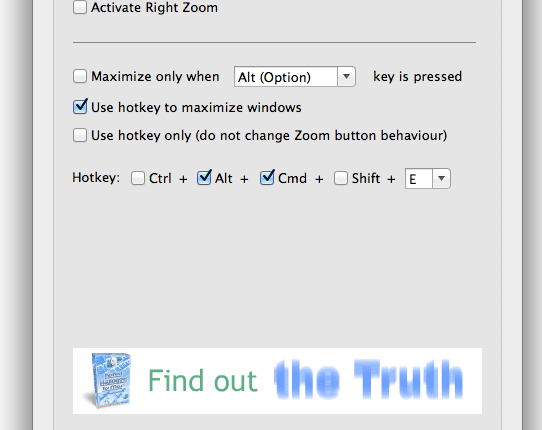
The General tab gives user the power to activate Right Zoom, maximize window when a certain key is pressed, or use hotkeys to maximize window.

Application tab allows users to configure Right Zoom. It is possible to enable Right Zoom on only a handful of apps or all the apps on your Mac machine. Once you have configured the settings you are comfortable with, hit the “Apply” button.
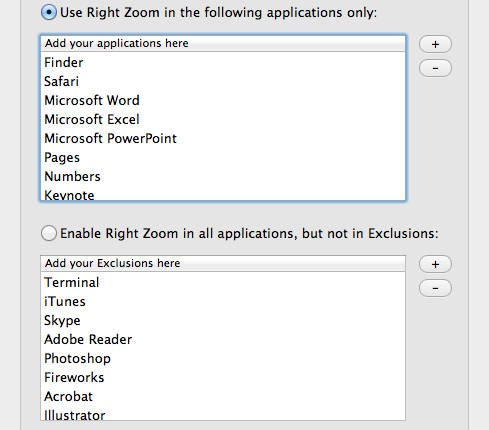
In cases like  Finder and Safari browser, Right Zoom is really useful. The ability to use shortcut keys makes life a little more easier. Some will agree when I say that Apple should have blended this feature into Mac OS X — well, until Apple acknowledges our requests, Right Zoom app is your friend in need.

App works just fine on Mountain Lion 10.8, iMac machine. Right Zoom runs on all Macs running Mac OS X 10.5 or later.

What is 400 Bad Request Error and How to Fix It
8 Best Solutions for Discord to Resolve its opening Problems on Windows 10
Why is your Windows 10 PC not allowing you to type in Cortana and how to fix it?
How To Quickly Add Facebook Friends Without Banned & Blocked
Disable the Annoying Startup Sound on Your Mac Computer

Sign Up For Daily Newsletter

Be keep up! Get the latest breaking news delivered straight to your inbox.
[mc4wp_form]
By signing up, you agree to our Terms of Use and acknowledge the data practices in our Privacy Policy. You may unsubscribe at any time.
Share This Article
Facebook Copy Link Print
Share
Previous Article How to Connect to FTP or SFTP Server in Ubuntu
Next Article How to Open PDF Files on Mac For Free

Stay Connected

248.1KLike
69.1KFollow
134KPin
54.3KFollow

							banner							
							banner
Create an Amazing Newspaper
Discover thousands of options, easy to customize layouts, one-click to import demo and much more.
Learn More

Latest News

What Date is 72 Days From Today?
Guides
What is 18 Weeks From Today?
Weeks
Brazil Tech News
Brazil Tech News: Top 10 Startups Changing Latin America
News
The Best AI Video Generator for YouTube: Turning Scripts into Viral Content Fast
Guides

You Might also Like

How to forget a network on windows 10

admin
admin
1 Min Read

How to Find Latest Ustream Live Streaming Videos From Twitter

Sara Taylor
Sara Taylor
1 Min Read

Knownhost Review — Three Years of Reliable Hosting!

admin
admin
3 Min Read
//

We influence 20 million users and is the number one business and technology news network on the planet

Sign Up for Our Newsletter

Subscribe to our newsletter to get our newest articles instantly!

[mc4wp_form id=”1616″]

BlogoteBlogote
Follow US
Join Us!
Subscribe to our newsletter and never miss our latest news, podcasts etc..
[mc4wp_form]
Zero spam, Unsubscribe at any time.
Welcome Back!

Sign in to your account

Username or Email Address
Password

Lost your password?