On Android there is a recovery mode option . Examples are CWM or TWRP . Well, for Samsung phones , the recovery mode is called Odin mode.
The Odin mode on this Samsung generally functions to do flashing via a PC or Laptop device.
Usually Odin mode can be activated by pressing several key combinations.
But under certain conditions Odin mode can enter by itself which will certainly be a hassle for users.
CLOSElist of contents
- What is Odin Mode?
- How to Exit Samsung Odin Mode
- 1. Tombol Power + Volume + Home
- 2. Remove Battery, Wait, Reinstall
- 3. Removing Some Components
- 4. Re-flash Samsung
- 5. HP Service
- Conclusion
What is Odin Mode?
As previously explained, Odin mode is another name for recovery mode on cellphones that serves to repair damage to Samsung cellphones, especially through the flashing method .
Broadly speaking, Odin mode has a function to fix Samsung phones that have problems such as:
- Bootloop
- Can’t boot
- Until the android version update .
Odin mode can be used for all types of Samsung cellphones such as:
- J1 ace
- D5 prime
- J110g
- J3 pro.
- And many more
How to Exit Samsung Odin Mode
Samsung’s Odin mode should enter when we press certain key combinations. But how exactly does the mode enter itself?
Well, there are several ways to deal with it. Please take a look:
1. Tombol Power + Volume + Home
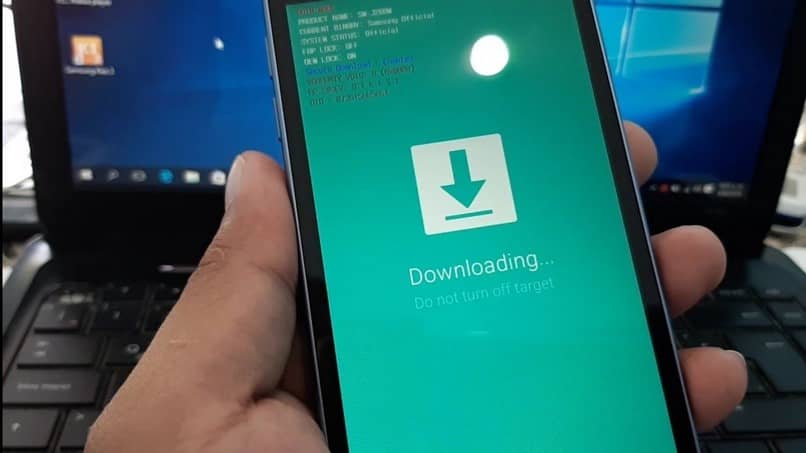
Usually to enter Odin mode, in addition to using a PC, you can also use the key combination on the HP device.
Similar to how to exit Samsung’s Odin mode, you can press the power button + volume down button + Home button at the same time.
Later the system will automatically reboot and exit Samsung Odin mode.
This method is usually used for Samsung cellphones that have a non-removable battery type or an embedded battery such as the S7 edge, A5, or Note series.
However, if the type of cellphone you are using does not have a Home button , you can use a combination of the Power button and the Volume down button by pressing them simultaneously.
Wait for a few moments until the cellphone you are using reboots and re-enters the system as before.
2. Remove Battery, Wait, Reinstall
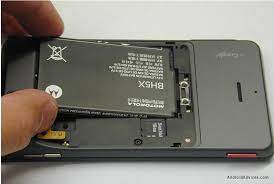
For you Samsung cellphone users who have a removable battery system or a removable battery , you can use this method if the button combination method doesn’t work.
As with other systems, Odin mode can usually be issued if you turn off your cellphone as usual.
But under certain conditions, you cannot use the power off button and must turn off the cellphone by force, namely by removing the battery from the cellphone.
After the battery is removed, you can wait about 10-30 seconds, then you can plug it back in.
Later the system will reboot back to the initial system and the cellphone you are using is out of Odin Samsung mode.
3. Removing Some Components
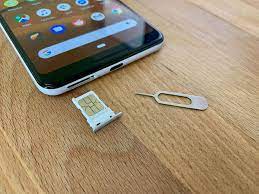
If by removing the battery you still can’t get out of Odin mode, the next way you can use is to remove some of the components contained in the cellphone.
- Like a SIM card
- and also memory card
Usually by removing components other than the battery, when the cellphone is turned on again, Odin mode will automatically exit.
4. Re-flash Samsung
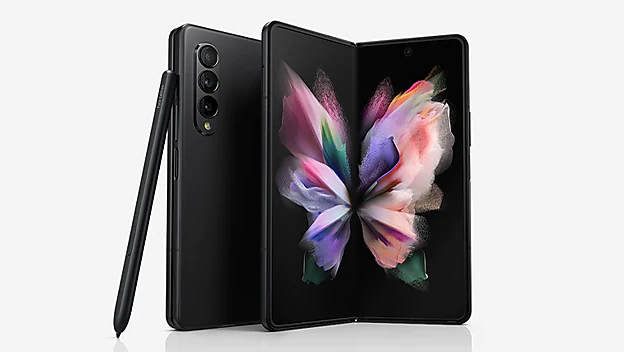
If the cellphone you are using goes into Odin mode repeatedly even though you have restarted it many times, this could be due to corrupt system data .
To overcome this, you need to flash a PC or laptop as a supporting media.
As for flashing itself, there are different ways depending on the type of Samsung cellphone you are using.
You need to adjust the Firmware file to the type of Samsung cellphone you are using so you don’t experience a total death .
To make sure that the Firmware file you are using is in accordance with HP specifications, you can use the following method.
- The first step you have to do is to check the name of the Firmware file again, because usually in the Firmware file name there is information on the type or code name of the HP that is compatible with the file .
- If you want to download and install a Firmware file , you need to know various information about the Firmware file first, including reviews and reviews from other users who have used the Firmware file .
- It is recommended to download the Firmware file on a forum that is specifically for the type of Samsung cellphone you are using.
5. Phone Service

The last way you can do if the previous methods still can’t get out of Odin mode is to do HP service.
You need to service your cellphone because if the three methods above still don’t come out of Samsung’s Odin mode, it means that there is a problem with the HP software you are using.
The most common example of software problems is the EMMC component. It could be that the EMMC contained in the cellphone is weak and must be replaced.
Of course, it is not possible for just anyone to replace the EMMC, so it is advisable to take it to a service center.
Conclusion
To exit Odin mode, Samsung has several ways that are quite easy for ordinary people to do themselves.
You only need to use a few buttons on the Samsung phone to exit Odin mode.
You can also re- flash using a PC device if pressing the button combination and removing the battery still doesn’t work.