Who’d have reckoned that one day looking into Earth’s locations would be possible right from our PC? Google Earth has made it possible, without the need to pack the bags, to make a journey to almost any corner of the world. Flying to any location on the earth has never been this easier — and free, even for the aliens. 😉
Google Earth stays on top of my most favorite apps for its easy to explore geographical locations feature. However, installing it on my Ubuntu 10.04 Lucid Lynx was a bit more trickier than I expected. And being a self-proclaimed geek, I was able to install Google earth after several tries. 😀
If you are ever wondering how to install Google Earth on Lucid Lynx, below are few of the best methods to do so.
Installing Google Earth on Ubuntu 10.04 (Lucid Lynx)
The east way: Medibuntu Package.
Google Earth is available as an easy to install package in the Medibuntu repositories. Just the follow the given steps to install Google Earth using the Medibuntu package.
1. Download the Google Earth Medibuntu package here.
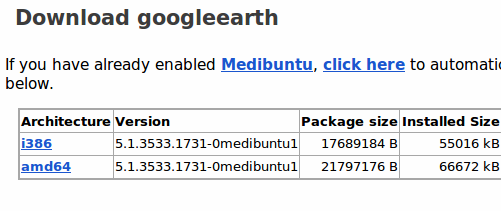
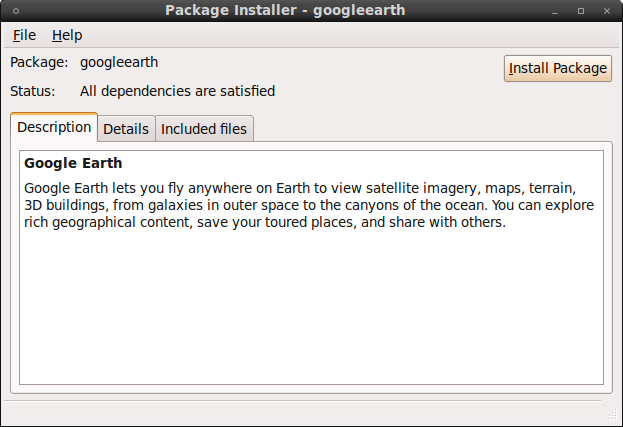
2. Once the download completes, open the package and select “Install Package” to start the installation process.
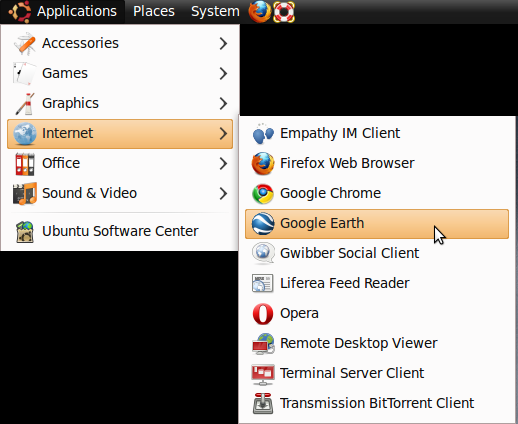
3. As the installation completes, just navigate to Application -> Internet -> Google Earth to start the program.

The advanced way: Creating a Google Earth Package.
If you find that the Medibuntu packages are outdated or unavailable, you can create your own Google Earth Package using the Terminal. Here’s how you can go about it.
1. Fire up the Terminal by navigating to Applications -> Accessories -> Terminal. The Terminal window will open.
2. In the Terminal window, enter the following command to install the googleearth-package.
sudo apt-get install googleearth-package
3. Now, enter the following command to build the Google Earth installation package from the downloaded script.
sudo make-googleearth-package --force
4. Once the Google Earth package is created, use the following command to install Google Earth.
sudo dpkg -i ./googleearth_VERSION_ARCHITECTURE.deb
For example, for the current version you need to enter the following command :
sudo dpkg -i ./googleearth_5.1.3535.3218+0.5.7-1_i386.deb
The command may vary depending on the version of the program as well as the architecture. Please make sure you enter the exact details.
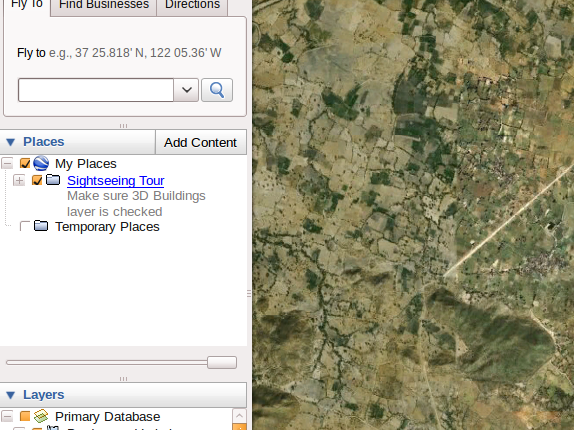
5. After the installation is complete, close the terminal and navigate to Applications -> Internet -> Google Earth to start the program.
.Bin Package: Google Earth Linux Package
Google offers Google Earth as a binary package for Linux users. You can download the binary package from the Google Earth Official web site (Visit). After the download completes, install the .bin package using the terminal. If you are unfamiliar with the process, here is a small tutorial that can help you in installing the bin file — How to install a .bin file in Ubuntu.
If you experience any problems during the installation process, do let us know. We will be more than happy to help you. 🙂