
By using this site, you agree to the Privacy Policy and Terms of Use.
Accept
BlogoteBlogoteBlogote
  • Software
  • Tech News
  • Business
  • Fashion
  • Finance
  • Health
  • Lifestyle
Search
  • Contact
  • Blog
  • Complaint
  • Advertise
Reading: How to know how much Ram memory your computer has
Share
Sign In
Notification Show More
Font ResizerAa
BlogoteBlogote
Font ResizerAa
  • Tech News
  • Gadget
  • Technology
  • Mobile
Search
  • Home
    • Home 1
    • Home 2
    • Home 3
    • Home 4
    • Home 5
  • Categories
    • Tech News
    • Gadget
    • Technology
    • Mobile
  • Bookmarks
  • More Foxiz
    • Sitemap
Have an existing account? Sign In
Follow US
  • Contact
  • Blog
  • Complaint
  • Advertise
Home » Blog » How to know how much Ram memory your computer has
Guides

How to know how much Ram memory your computer has

Kelly Jhonson
Last updated: October 7, 2021 10:03 am
Kelly Jhonson
Share
SHARE

In this article, we are going to teach you how to know how much Ram memory our PC has. There are different ways to find out this information, so we will publish the ones that seem easier and faster so you don’t waste time.


The Ram is one of the characteristics we look at when we buy a computer more. Currently, the normal thing with what different types of PC come is to have 8GB or 16GB of Ram. Some models come out with 4GB, the least, but this amount today is insufficient to play games and even to surf the Internet due to the high memory requirements that Windows 10 has.


These are the ways that we recommend you to know how much memory a PC has installed.

Windows and the “Run” option

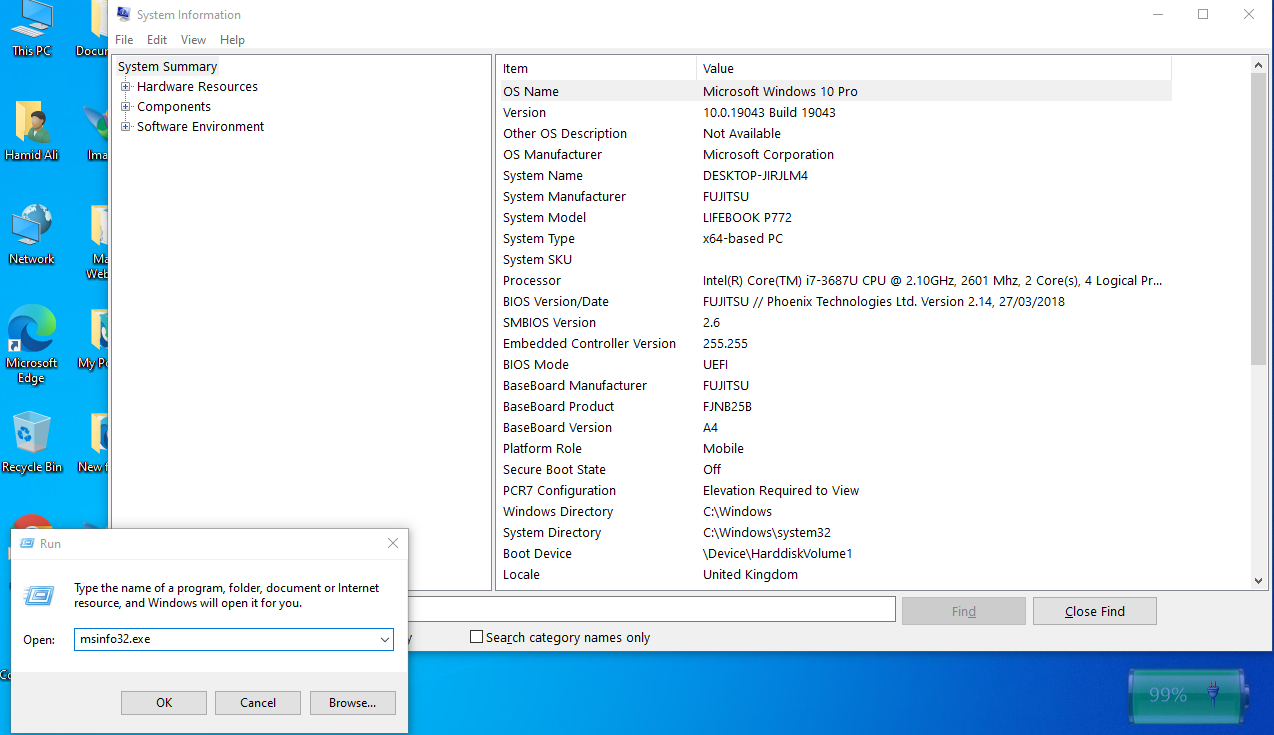
This is perhaps the fastest way to know the memory of a computer. We just have to go with the mouse to the Windows logo that appears in the lower-left corner of your desktop.


There we click on the right mouse button to bring up a drop-down menu. We look for the option ” Run ” and click on it to be launched.


Now we have a small window open on the PC that allows us to write commands. We just have to execute the command “msinfo32.exe” and click OK.


A new window called “System Information ” will open with all the data from the PC. In the option “System summary ” we can see a large amount of computer data and among them the ” Installed physical memory (RAM) ” which is the data we were looking for.
How to know how much Ram memory your computer has

From Windows Settings

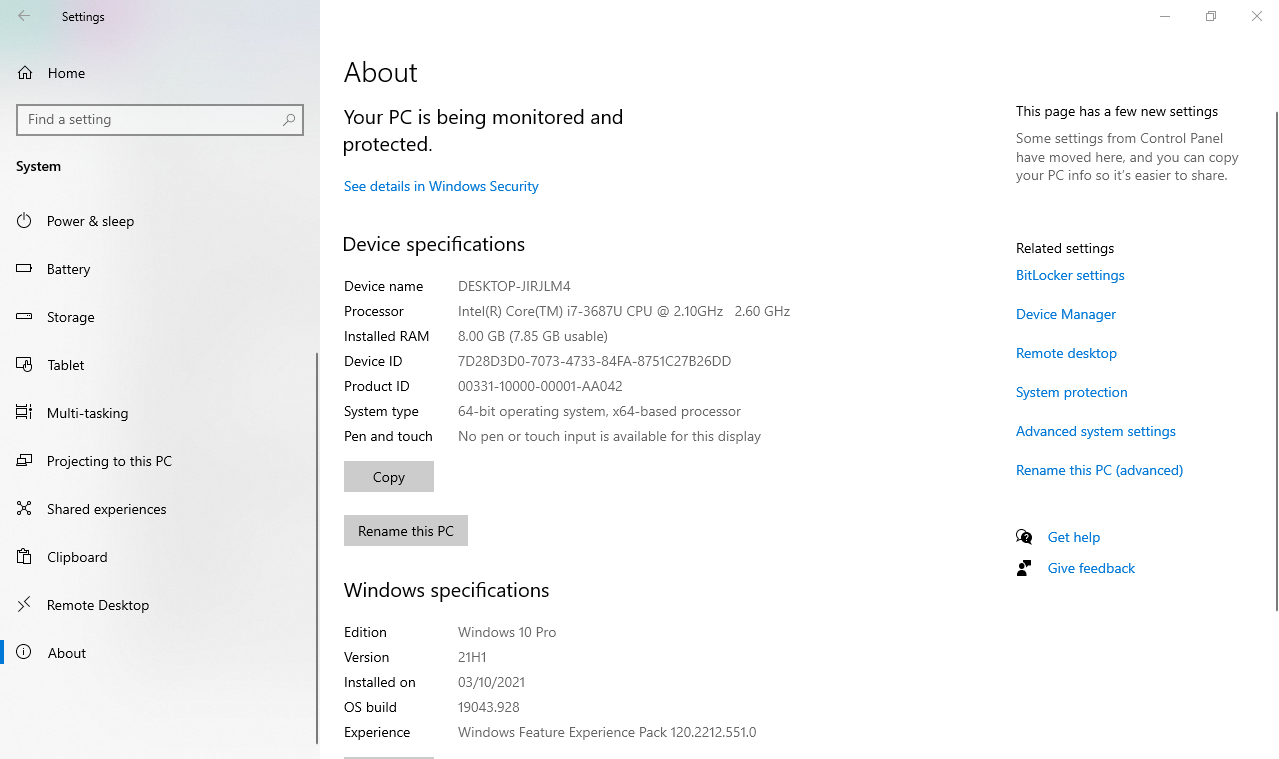
Windows configuration is another ally that we can use to know the memory of our computer. We access in the same way as the previous case, going to the Windows logo and clicking with the right mouse button. Now we choose the menu option that says ” Settings ” and we wait for a new window to open.


We just have to go to the option “system” and now in the sidebar that says “ About ” so that the data from our computer is loaded. There in the part that says “ Device specifications ” we see a line where it says “ installed RAM ” which is where the memory of our PC will appear.
How to know how much Ram memory your computer has

conclusion

There are more ways to know the memory installed in a PC, but the truth is that these are the most comfortable of all. You will not have to install any application or anything in particular, just use the resources that Windows offers us to know this information.

Harvest ETFs
What Date is 72 Days From Today?
What Is The Difference between MiniLED vs MicroLED
What is NFT and why you need to know it
The Dental Concierge: Your Gateway to Affordable Full Mouth Restoration
TAGGED:how much Ram memory your computer has

Sign Up For Daily Newsletter

Be keep up! Get the latest breaking news delivered straight to your inbox.
[mc4wp_form]
By signing up, you agree to our Terms of Use and acknowledge the data practices in our Privacy Policy. You may unsubscribe at any time.
Share This Article
Facebook Copy Link Print
Share
Previous Article GriftHorse: how to prevent this Trojan
Next Article Toshiba stops making laptops

Stay Connected

248.1KLike
69.1KFollow
134KPin
54.3KFollow

							banner							
							banner
Create an Amazing Newspaper
Discover thousands of options, easy to customize layouts, one-click to import demo and much more.
Learn More

Latest News

Juanita Katt
Juanita Katt: The Private Daughter of a Hollywood Family
Biography
What is 18 Weeks From Today?
Weeks
Brazil Tech News
Brazil Tech News: Top 10 Startups Changing Latin America
News
The Best AI Video Generator for YouTube: Turning Scripts into Viral Content Fast
Guides

You Might also Like

Types of Voice Acting Jobs: Explained

admin
admin
8 Min Read

How to Reshape Low-Resolution Images with VanceAI Image Upscaler?

admin
admin
7 Min Read

Advantages of Registering a Company Abroad Online

admin
admin
4 Min Read
//

We influence 20 million users and is the number one business and technology news network on the planet

Sign Up for Our Newsletter

Subscribe to our newsletter to get our newest articles instantly!

[mc4wp_form id=”1616″]

BlogoteBlogote
Follow US
Join Us!
Subscribe to our newsletter and never miss our latest news, podcasts etc..
[mc4wp_form]
Zero spam, Unsubscribe at any time.
Welcome Back!

Sign in to your account

Username or Email Address
Password

Lost your password?