
By using this site, you agree to the Privacy Policy and Terms of Use.
Accept
BlogoteBlogoteBlogote
  • Software
  • Tech News
  • Business
  • Fashion
  • Finance
  • Health
  • Lifestyle
Search
  • Contact
  • Blog
  • Complaint
  • Advertise
Reading: Stream Videos From One Computer to Another Using VLC Player
Share
Sign In
Notification Show More
Font ResizerAa
BlogoteBlogote
Font ResizerAa
  • Tech News
  • Gadget
  • Technology
  • Mobile
Search
  • Home
    • Home 1
    • Home 2
    • Home 3
    • Home 4
    • Home 5
  • Categories
    • Tech News
    • Gadget
    • Technology
    • Mobile
  • Bookmarks
  • More Foxiz
    • Sitemap
Have an existing account? Sign In
Follow US
  • Contact
  • Blog
  • Complaint
  • Advertise
Home » Blog » Stream Videos From One Computer to Another Using VLC Player
How to

Stream Videos From One Computer to Another Using VLC Player

James Betterson
Last updated: June 6, 2022 7:49 am
James Betterson
Share
SHARE

VLC Player is undoubtedly one of the simplest and powerful media player that can not only play a variety of files but also fixes corrupted video files in no time.

Contents
  • VLC Video Streaming Guide For Mac and Windows
    • Step 1: Find Mac’s Local Address to Stream Video Later
    • Step 2:  Open Streaming Wizard on VLC Player
    • Step 3: Select Video File For Local Streaming
    • Step 4: Launch VLC Player on Windows Computer

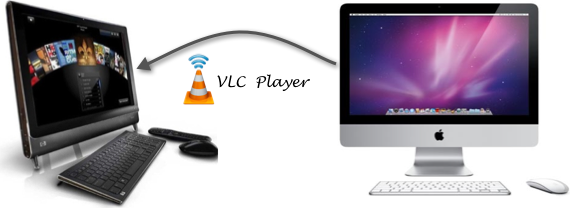
Let’s take a situation where you have a Mac — iMac, MacBook Pro or Air — and your friend has a Windows PC. If both of you have VLC Player installed on your machine, it is easier to stream video clips and music files from one computer to another.

Here is how you can use VLC for streaming videos.

VLC Video Streaming Guide For Mac and Windows

I am using Mac as my primary computer to stream a video clip to my Windows XP machine. You can use this tutorial for streaming videos from Mac to Mac, Mac to Windows, or even Windows PCs to Linux laptops. The only thing you have to make sure is that VLC Player should be installed on both the PCs.

I am going to stream a video (movie sample clip) from my iMac to Windows computer. Let’s start…
Step 1: Find Mac’s Local Address to Stream Video Later

To find Mac’s local address, go to System Preference -> Sharing. The Computer Name is the address you will use later. Save the name; in my case, it is Admins-iMac.local.

We will use this local address on our Windows PC in Step 4.

Step 2:  Open Streaming Wizard on VLC Player

On your Mac, assuming that you have already launched VLC Player, go to the File menu and select Streaming / Exporting Wizard…

Choose Stream to Network which allows you to stream movies and audio over a network. Press Next.

Step 3: Select Video File For Local Streaming

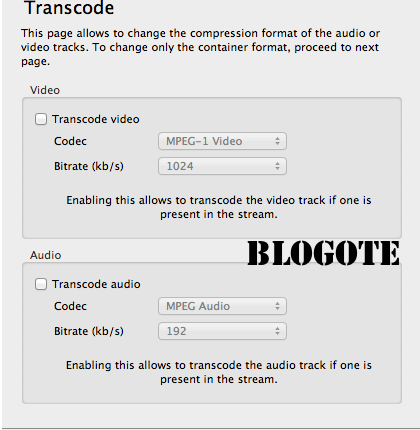
Select a Stream: Select the video file you’d like to stream from your Mac to Windows — it can be any file of any size. Press Next.
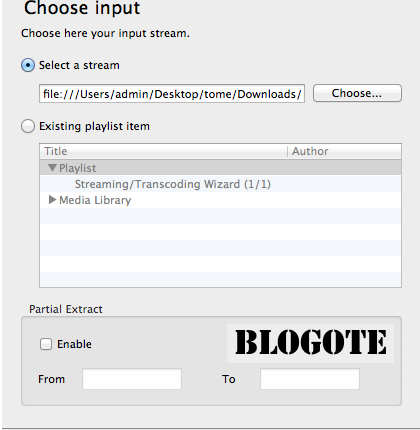
In the next streaming page, choose HTTP to playback video on several computers. No need to enter any destination address.
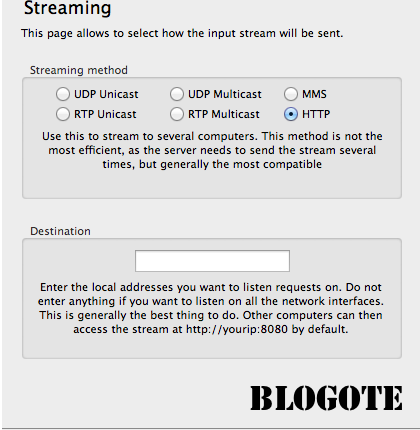
In the Transcode page, it is up to you to change the compression format of the audio or video tracks. I will leave them untouched and move further by pressing Next.
If you want to select how the stream will be encapsulated, select any of the video format: MPEG PS, MPEG TS, MPEG 1, OGG, RAW, ASF, MPEG 4, MOV, WAV, ASFH.

I will choose MPEG TS format.
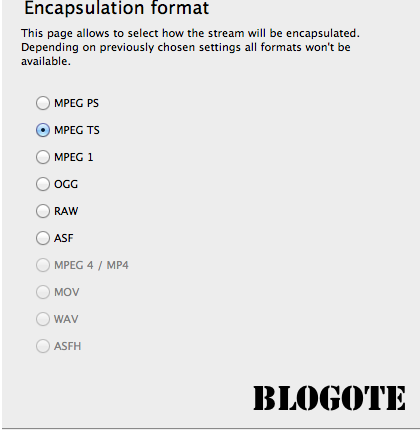
The next dialog box contains additional streaming parameter. Once again I will leave them untouched.

Go Next and hit Finish.

Step 4: Launch VLC Player on Windows Computer

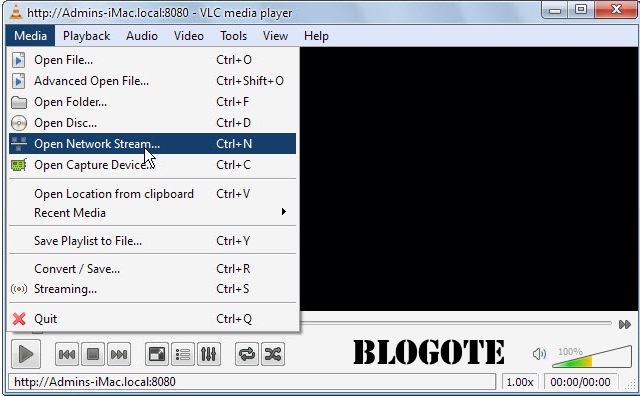
On your Windows PC, launch VLC Player and head over to Media -> Open Network Stream…
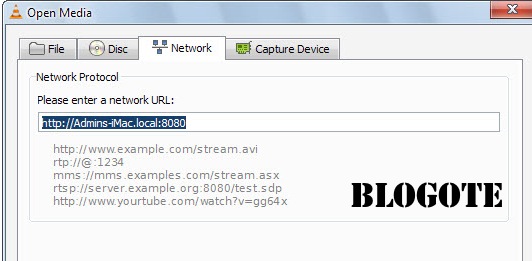
Type in Mac’s local network address obtained from step 1. In my case, the address will be this:

http://Admins-iMac.local:8080

Do not forget to add :8080 at the end of the address.
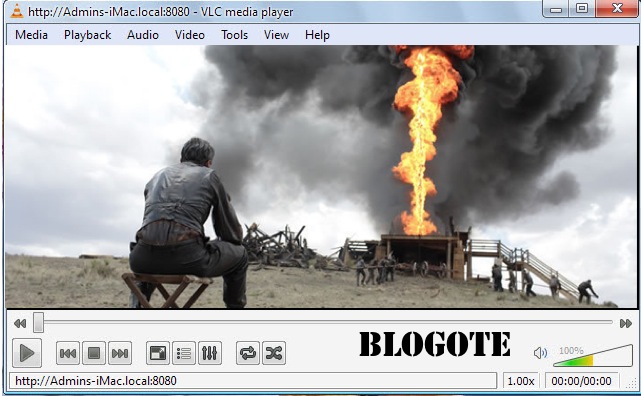
Now VLC Player will automatically play the video file of your Mac on your Windows computer.
Apple TV App Now Arrives on Android TV Devices
How to fix Microsoft error code 0x426-0x0 0x0
Top 4 Challenges for The Sims 4: This is how you bring variety into the game
Download and install Windows 11 beta
Tips to improve Battery Life of MacBook Air And MacBook Pro

Sign Up For Daily Newsletter

Be keep up! Get the latest breaking news delivered straight to your inbox.
[mc4wp_form]
By signing up, you agree to our Terms of Use and acknowledge the data practices in our Privacy Policy. You may unsubscribe at any time.
Share This Article
Facebook Copy Link Print
Share
Previous Article How to backup profile of Google Chrome browser
Next Article Save Bandwidth by Streaming Only Audio From YouTube Videos

Stay Connected

248.1KLike
69.1KFollow
134KPin
54.3KFollow

							banner							
							banner
Create an Amazing Newspaper
Discover thousands of options, easy to customize layouts, one-click to import demo and much more.
Learn More

Latest News

Juanita Katt
Juanita Katt: The Private Daughter of a Hollywood Family
Biography
What Date is 72 Days From Today?
Guides
What is 18 Weeks From Today?
Weeks
Brazil Tech News
Brazil Tech News: Top 10 Startups Changing Latin America
News

You Might also Like

Empower Google Chrome with Firefox addon

admin
admin
5 Min Read

Close PayPal Account Without Delete Option

Sara Taylor
Sara Taylor
3 Min Read

Problems and Issues With Philips Songbird Media Player

James Betterson
James Betterson
4 Min Read
//

We influence 20 million users and is the number one business and technology news network on the planet

Sign Up for Our Newsletter

Subscribe to our newsletter to get our newest articles instantly!

[mc4wp_form id=”1616″]

BlogoteBlogote
Follow US
Join Us!
Subscribe to our newsletter and never miss our latest news, podcasts etc..
[mc4wp_form]
Zero spam, Unsubscribe at any time.
Welcome Back!

Sign in to your account

Username or Email Address
Password

Lost your password?