By using this site, you agree to the Privacy Policy and Terms of Use.
Accept
BlogoteBlogoteBlogote
  • Software
  • Tech News
  • Business
  • Fashion
  • Finance
  • Health
  • Lifestyle
Search
  • Contact
  • Blog
  • Complaint
  • Advertise
Reading: How To Remove Items From Launchpad on Mac OS X Lion
Share
Sign In
Notification Show More
Font ResizerAa
BlogoteBlogote
Font ResizerAa
  • Tech News
  • Gadget
  • Technology
  • Mobile
Search
  • Home
    • Home 1
    • Home 2
    • Home 3
    • Home 4
    • Home 5
  • Categories
    • Tech News
    • Gadget
    • Technology
    • Mobile
  • Bookmarks
  • More Foxiz
    • Sitemap
Have an existing account? Sign In
Follow US
  • Contact
  • Blog
  • Complaint
  • Advertise
Home » Blog » How To Remove Items From Launchpad on Mac OS X Lion
Apple

How To Remove Items From Launchpad on Mac OS X Lion

Sara Taylor
Last updated: June 6, 2022 7:49 am
Sara Taylor
Share
SHARE

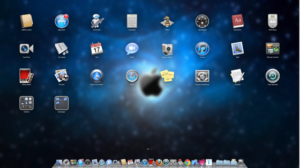
Launchpad is useful, yes, but no room for customization can be a little frustrating. When you install Mac OS X 10.7 Lion, Launchpad will scour your hard drive for those dozens of apps you have installed over the years and add them in its basket. And it gets worse when you are not able to remove these apps.

Launchpad is the least used feature on my iMac. I don’t particularly hate Launchpad, but I’ll admit, I don’t like it either. When you launch applications from Spotlight or from your Application folder, it’s pointless to have Launchpad on Mac OS X Lion.
Duplicate icons in Launchpad

When you open Launchpad, you may occasionally encounter multiple icons of the same app. This is because you have two copies of the app installed on your Mac. A slightly different version of the app — an older version, usually — is messing up your Launchpad interface.

To remove duplicate icons, you should check your Applications folder, and delete the older version of the app. Once you do this, switch to Launchpad and you’ll notice a question mark on the app, drag the app to trash. That’s it!

Unfortunately, this is the only way to rid of duplicate icons from Launchpad.

Remove items from Launchpad

One of the easiest way to delete an app from Launchpad is to move your cursor on that particular item and hold down the mouse’s left-click until the icons start wiggling.

You’ll see the app is marked with an X on the top.

Click on the X to remove that app from your Mac machine. This works only for the apps purchased from the Mac App Store.

Delete Apps from Launchpad

Because Launchpad automatically collects the installed apps, dragging an item to trash doesn’t delete that item instantly. This applies for all the third-party installed apps on your Mac.

So, deleting the third-party apps in Launchpad follows the same procedure as removing duplicate items.

You have to delete the application from Application Folder. Now go to launchpad, if the app is still there, drag it to the trash to delete it permanently — though, in most of the cases, Mac OS X Lion removes them automatically.

Clean Your Mac Launchpad

You can also clean the Launchpad by following these steps, as posted in the Apple Discussion Forum:

  1. Go to user/library/application support/dock
  2. Trash the .DB file — to be on the safer side, have a copy of this file.
  3. Restart your Mac — a new .db file will be created.

This will remove every icon of the app that has been already uninstalled, and also removes any duplicated/alias icons that you’ve downloaded off the Internet as a third-party app or from the Apple Mac App Store.

Better Way to Track Cellular Data / WiFi / 3G Usage on iPhone, iPad
Fix iTunes Error 1004 While Restoring iPhone 4
Funny iPhone 4S/5 Prank Played on the Streets
iPod Replacement Battery: All You Need to Know About iPod Touch Batteries
iOS 6 Update: Developers Download iOS 6.1 Beta 2 Firmware

Sign Up For Daily Newsletter

Be keep up! Get the latest breaking news delivered straight to your inbox.
[mc4wp_form]
By signing up, you agree to our Terms of Use and acknowledge the data practices in our Privacy Policy. You may unsubscribe at any time.
Share This Article
Facebook Copy Link Print
Share
Previous Article When Games Crashes, Freezes on Your Mac
Next Article Guide to Recover Lost or Stolen iPhone 4S/4/3GS

Stay Connected

248.1KLike
69.1KFollow
134KPin
54.3KFollow

							banner							
							banner
Create an Amazing Newspaper
Discover thousands of options, easy to customize layouts, one-click to import demo and much more.
Learn More

Latest News

Juanita Katt
Juanita Katt: The Private Daughter of a Hollywood Family
Biography
What Date is 72 Days From Today?
Guides
What is 18 Weeks From Today?
Weeks
Brazil Tech News
Brazil Tech News: Top 10 Startups Changing Latin America
News

You Might also Like

Have iPhone 4 FaceTime Video Calls Over 3G With My3G App

Sara Taylor
Sara Taylor
2 Min Read

Great Jailbreak Apps for a More Superb iPhone Experience

Sara Taylor
Sara Taylor
3 Min Read

Exclusive Tip: Checking Browsing History on iOS Safari Browser

Sara Taylor
Sara Taylor
2 Min Read
//

We influence 20 million users and is the number one business and technology news network on the planet

Sign Up for Our Newsletter

Subscribe to our newsletter to get our newest articles instantly!

[mc4wp_form id=”1616″]

BlogoteBlogote
Follow US
Join Us!
Subscribe to our newsletter and never miss our latest news, podcasts etc..
[mc4wp_form]
Zero spam, Unsubscribe at any time.
Welcome Back!

Sign in to your account

Username or Email Address
Password

Lost your password?